Build workflows
Create and run workflows
The editor, saving and versions, testing, activating, workflow settings and archiving.
The editor
- Canvas: drag nodes, connect an output to an input, and click + on an output to add the next step.
- Node panel: double-click a node to open its settings, with the input on the left and the output on the right.
- Top bar: the name, tags, Save, Share, version history and the workflow menu (duplicate, download, import, settings, archive).
- Bottom: Execute workflow, and the logs of the latest run.
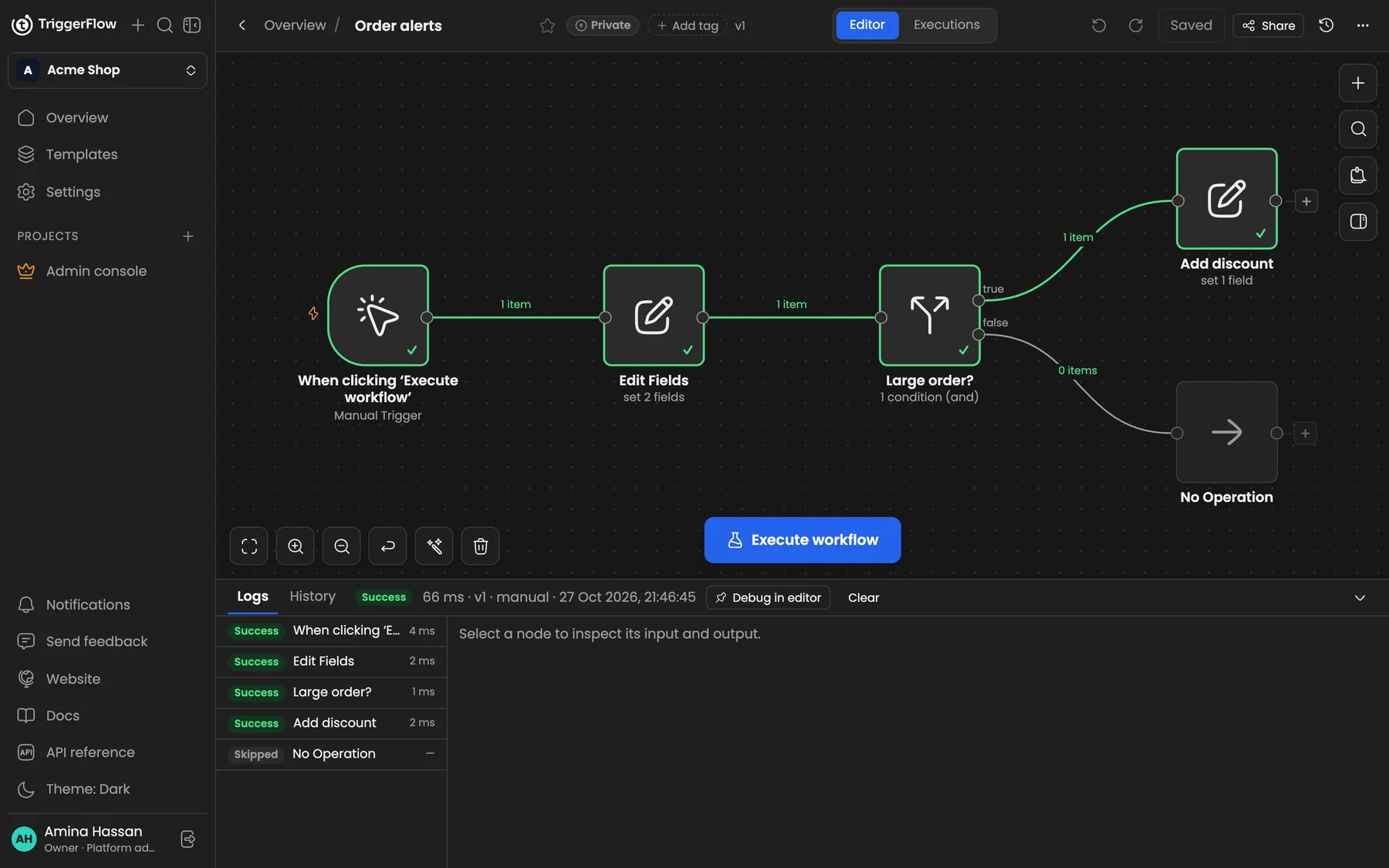
The editor: the canvas, the top bar, Execute workflow* and the logs of the last run.*
Save and versions
Press Ctrl S / ⌘ S or click Save. Each save that changes the steps creates a new version; open version history (the clock icon) to see or restore earlier versions. Pinned test data is saved with the workflow but doesn't create a version.
Test
Click Execute workflow to run the whole workflow, or hover a node and click ▶ to execute that step (it runs the node and everything before it). Hover a trigger and click Execute workflow beside it to run from that trigger.
Activate
Turn on the Active switch to make the triggers live. Activation checks the workflow first: it must have a trigger that can start on its own (Webhook, Form, Schedule, a polling trigger, WhatsApp, or a public Chat Trigger) and no validation problems. Deactivating stops new runs; runs already going finish.
Workflow settings
Open the workflow menu → Settings:
- Error workflow: a workflow (starting with an Error Trigger) that runs when this one fails. See Handle errors.
- Timezone: used by Schedule triggers and AI agents that don't set their own.
- Timeout: stop runs that take longer than this.
- Which executions to keep: successful, failed and manual runs can each be saved or not.
- Estimated time saved: minutes saved per successful production run, shown on the Overview.
Duplicate, download and import
From the workflow menu you can duplicate a workflow, download it as a JSON file, or import a file (Triggerflow or n8n) into the canvas. Downloads never contain credentials.
Archive and delete
Workflows are archived rather than deleted straight away. Archiving turns the workflow off and hides it from the list; its executions are kept. To see archived workflows, open Filters → Show archived workflows. From there you can restore a workflow (it comes back inactive) or delete it permanently. Archived workflows are read-only and don't count toward your plan's workflow limit.