Build workflows
Executions
Follow runs, read node input and output, retry failures and manage execution history.
An execution is one run of a workflow. Triggerflow records each node's input, output, status and timing as the run goes, so you can watch it live and inspect it later.
Where to find them
- Overview → Executions: every run you can see, with filters by status.
- In the editor → Executions tab: the runs of that workflow only.
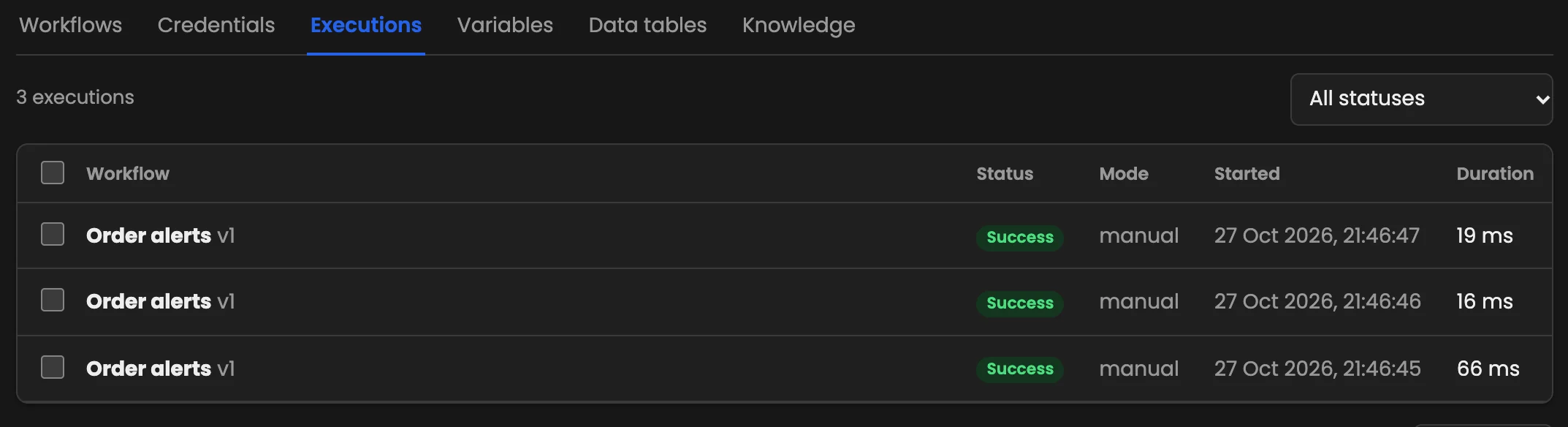
*Overview → Executions: each run with its status, mode, start time and duration.*
Click a run to open it on the canvas: each node shows its result, and the logs list every step with its input and output.
Statuses
| Status | Meaning |
|---|---|
| queued | waiting for a free worker |
| running | in progress |
| waiting | paused by a Wait node, an approval or a payment |
| success | finished without errors |
| error | a node failed and the run stopped |
| crashed | the run was interrupted (for example the server restarted) |
| canceled | someone stopped it |
Modes
Each run records how it started: manual (from the editor), webhook, schedule, retry, subworkflow or error (an error workflow).
Retry a failed run
Open a failed, crashed or canceled run and click Retry. It runs again with the same trigger data. Sub-workflow runs are retried through their parent.
Debug in the editor
From a run, choose Debug in editor to load its data into the canvas as pinned data, then fix the workflow and run it again with exactly the same input. See Pin data for testing.
Delete executions
Tick the runs you want to remove and click Delete. The checkbox at the top selects the current page; then click Select all N executions to include every run matching the filter. Runs still in progress are skipped.
How long runs are kept
Your plan sets how long execution data is kept, and each workflow's settings can choose not to save successful, failed or manual runs at all. Older runs are removed automatically.